DS Manager Pro
Manage your Synology NAS like a Pro!
With DS Manager Pro you can supervise all important information, events, network traffic, tasks and health of your home server.



Frequently Asked Questions
Help, configuration tips, and troubleshooting guides for DS Manager Pro on Synology NAS devices.
💡 DS Manager Pro has evolved into NAS Pro.
Existing DS Manager Pro users can continue using the app or upgrade to NAS Pro for QNAP and TrueNAS support, interactive iOS widgets, and modern Siri shortcuts.
Discover more →Open DS Manager Pro and select the desired server with a 2FA-enabled account.
When the Authentication Required screen appears, ensure you check the "Remember me" checkbox.
Tap Login to authenticate. Your session token will be saved securely so iOS Widgets can refresh your server data in the background.

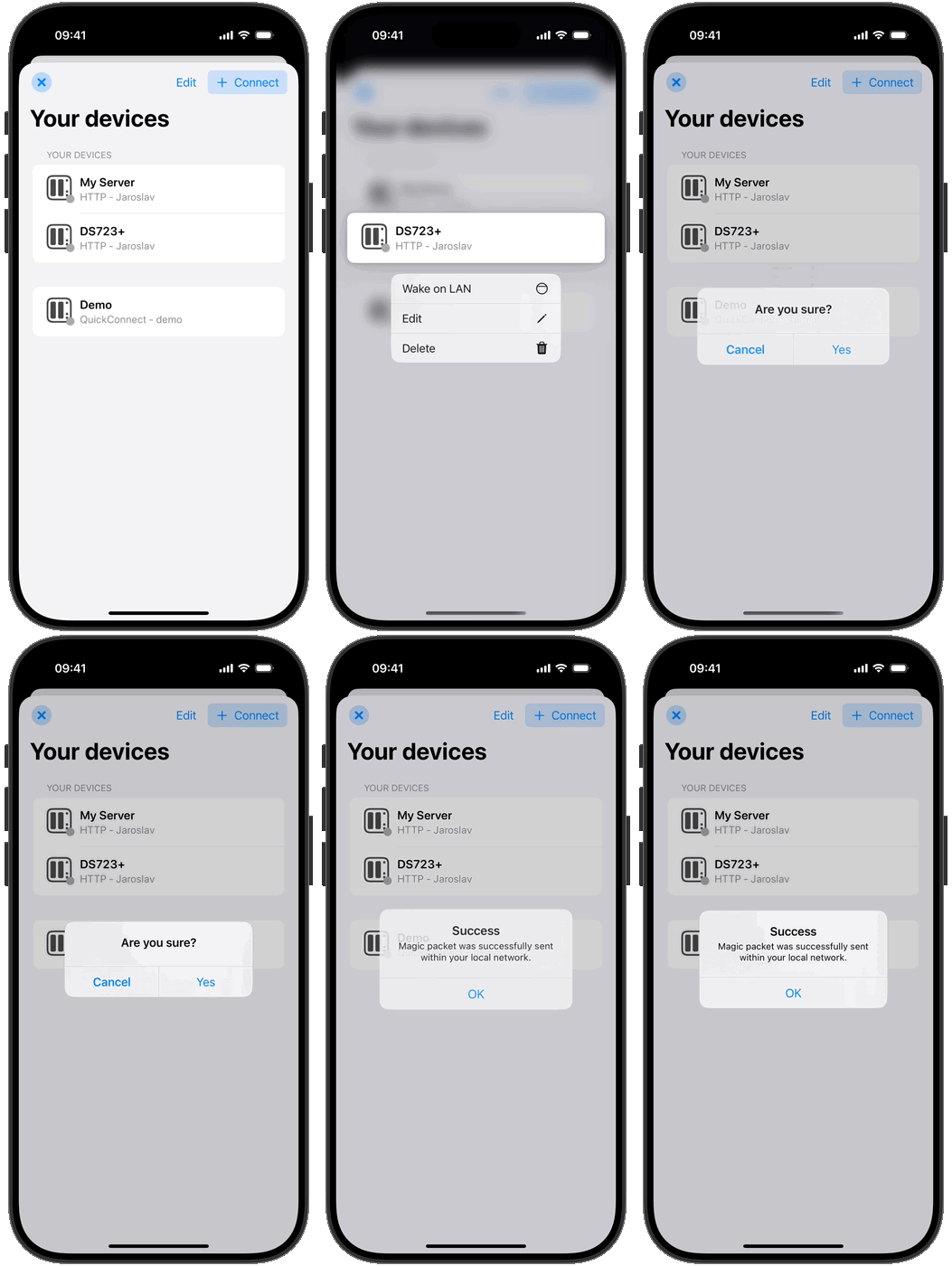
Open the Servers list.
Long press on the desired server row.
Select "Wake on LAN" from the context menu.
The app will broadcast a Magic Packet over your local network to power on the server.
Log in to your Synology NAS within DS Manager Pro.
Tap the Menu icon (three horizontal lines) and select "Debug mode".
Enable Debug mode by checking the "Debug mode" checkbox at the top.
Select the specific modules for which you want to collect diagnostic data (e.g. System info data).
Close the Debug mode window.
Navigate to the problematic module and tap Reload to trigger the issue.
Return to the Debug mode window and tap the Share button.
Send the debug trace file via email so our engineering team can inspect and resolve the problem.
Follow these recommendations when connecting using Synology QuickConnect:
Enter only your plain QuickConnect ID (e.g.
DemoServer), not the full web address (https://DemoServer.quickconnect.to).Toggle the HTTPS switch on/off in server settings to test fallback connectivity.
Ensure QuickConnect is enabled in DSM Control Panel → External Access → QuickConnect.
If connection issues persist, please send us a feedback trace so we can inspect the response.
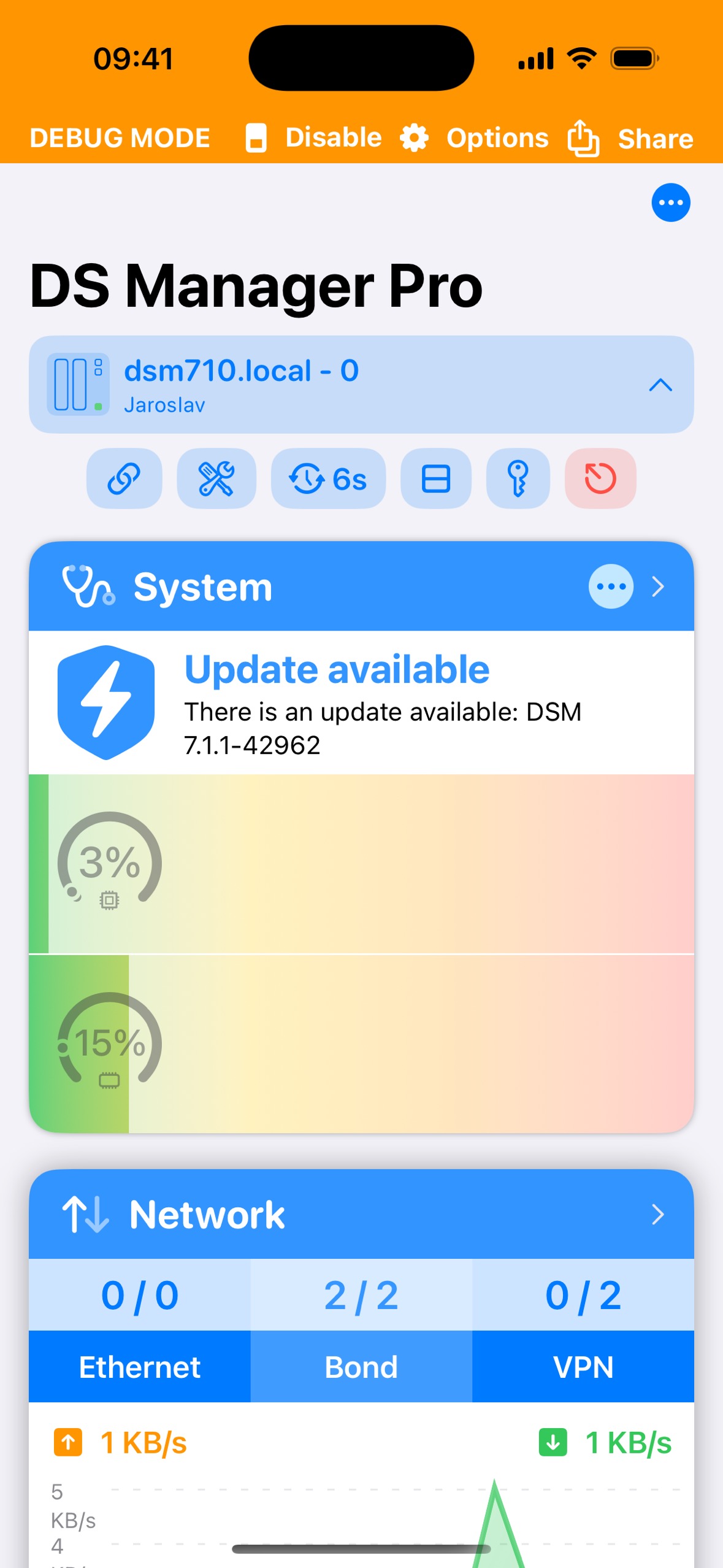
Open DS Manager Pro and tap the three dots icon in the top right corner.
Open the Help section.
Enable the Debug mode checkbox and close the Help section.
Tap Options in the Debug mode window and enable only the modules you want to inspect.
Log in to the server and navigate to the problematic module.
Wait for 1–2 refresh intervals to collect diagnostic data.
Tap the Share button to export and email the debug data.
Introduced in DSM 7, Adaptive Multi-Factor Authentication (Adaptive MFA) is an intelligent security feature that dynamically applies additional verification steps based on the context of a login attempt, rather than requiring them unconditionally.
Unlike standard MFA, Adaptive MFA assesses risk factors (unrecognized IP addresses, geographical changes, or unusual login hours) to balance strong protection with user convenience.
Need further assistance with DS Manager Pro?
If you run into issues or have questions about server compatibility, feel free to reach out to our team.